

Forgetting your iPhone passcode can leave you locked out at the worst possible moment. Whether the device shows “iPhone Unavailable” or you simply cannot remember the code, the good news is that a clean factory reset remains possible even if you have no computer nearby. This guide walks through the official ways to complete an iphone factory reset without password or computer using only the tools Apple already provides.
The process erases everything on the device, so it works best when you already have an iCloud backup or can accept starting fresh. Both methods described here require your Apple Account password and an active internet connection. They have been confirmed through Apple’s own support documentation for iOS 15.2 and later, including the latest versions available in 2026.
BIO
| Label | Information |
|---|---|
| Topic | iPhone factory reset without password or computer |
| Main Goal | Unlock a locked iPhone without a computer |
| Required iOS | 15.2 or later |
| Computer Needed | No |
| Screen Passcode Needed | No |
| Apple ID Required | Yes |
| Internet Required | Yes (Wi-Fi or cellular) |
| Find My Status | Must be previously enabled |
| Data Impact | All data is erased |
| Main Methods | On-screen erase and iCloud remote erase |
| Activation Lock | Remains active after reset |
| Typical Time | A few minutes for the erase |
| Best For | Forgotten passcode or disabled iPhone |
Understanding the Limits First
Apple designed these options for legitimate owners who have lost access to their passcode. You cannot remove Activation Lock without the correct Apple Account credentials. If the iPhone belongs to someone else or the Apple ID is unknown, these steps will not unlock it for use. The reset simply returns the device to factory settings while the Activation Lock stays in place until the right account signs in.
Data loss is permanent. Photos, messages, apps, and settings disappear unless they live in a recent iCloud backup. Take a moment to confirm you know your Apple ID email and password before beginning. If you have forgotten the Apple ID password itself, recover it first through Apple’s account recovery process on another device.
What You Need Before Starting
Your iPhone must run iOS 15.2 or a newer version. Find My needs to have been turned on previously. The device requires an active Wi-Fi or cellular connection so it can communicate with Apple’s servers. You also need the Apple Account email and password linked to that iPhone.
A second device or computer browser helps for the remote method, but it is not required for the on-screen option. Battery level should sit above 50 percent if possible, though the process can continue while charging. These conditions match the requirements listed in Apple’s official guidance for resetting a locked device without a computer.
Method One: Erase Directly from the Lock Screen
This is the simplest route for most people in 2026. Apple added the feature in iOS 15.2 and refined it in later releases. On the Lock Screen, begin entering incorrect passcodes. After several wrong attempts the screen changes to “iPhone Unavailable” or “Security Lockout.”
Continue until the option labeled “Forgot Passcode?” or “Erase iPhone” appears in the lower corner. The exact wording depends on your iOS version. On iOS 17 and later you usually see “Forgot Passcode?” Tap it. On earlier supported versions the button may simply read “Erase iPhone.”
Select “Start iPhone Reset” when prompted. Enter your Apple Account password to sign out of the account on the device. Confirm the erase. If you use an eSIM, the system may offer the choice to keep the cellular plan or remove it. Choose according to your needs.
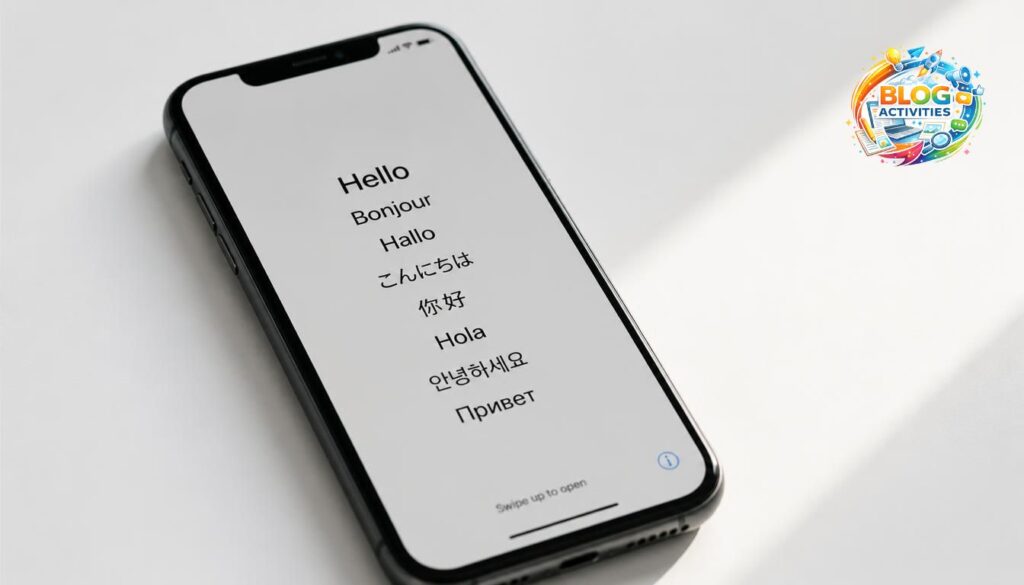
The iPhone begins wiping its storage. The process can take a few minutes. When it finishes the familiar Hello screen appears and the device is ready for setup as new. This method never requires a cable or another computer. It works as long as the phone stays connected to the internet and Find My was active beforehand.
Method Two: Remote Erase Through iCloud
When the lock screen options refuse to appear or the phone will not respond, the remote route offers a reliable alternative. On any other phone, tablet, or computer open a browser and go to the iCloud website. Sign in with the same Apple Account used on the locked iPhone.
Open the Find My or Find Devices section. Select your iPhone from the list of devices. Choose the Erase This Device or Erase iPhone option and confirm. Enter the Apple Account password if asked. The erase command queues immediately.
If the locked iPhone is currently online it begins the wipe at once. If it is offline the command waits and executes the next time the device connects to Wi-Fi or cellular data. This approach proves useful when the phone sits in another room, has a damaged screen, or simply will not display the on-device erase button.
Both methods achieve the same result: a factory-reset iPhone free of the old passcode. The remote option adds the convenience of working from almost any location as long as you can access the Apple Account.
What Happens After the Reset
The device restarts to the Hello screen. Follow the on-screen setup steps. When prompted for an Apple Account, sign in with the same credentials used during the erase. Activation Lock clears only after successful sign-in. If you previously backed up to iCloud you can restore that backup during setup. Otherwise set the phone up as new.
Create a new passcode right away. Turn Find My back on so the same recovery options remain available in the future. Check Settings to confirm the eSIM or physical SIM works correctly. Update to the latest iOS version once the device is fully set up. These final steps restore normal use and protect the phone going forward.
Common Problems and How to Handle Them
Sometimes the “Forgot Passcode?” or “Erase iPhone” button never appears. This usually means the device lacks an internet connection or Find My was never enabled. Connect to Wi-Fi or cellular data and try the incorrect passcode sequence again. If the phone still refuses, switch to the remote iCloud method.
The device may not show up in Find My. Confirm you signed into the correct Apple Account. Wait a few minutes and refresh the page. If the phone was powered off it needs to turn on and connect before the erase can finish.
A forgotten Apple Account password blocks both methods. Use Apple’s account recovery tools on another device to reset the password before attempting the factory reset. Without the correct password Activation Lock remains and the phone cannot be activated after the wipe.
Older iPhones running software before iOS 15.2 generally cannot use the on-device erase. In those cases a computer and Recovery Mode become necessary. If neither official no-computer method works, the practical next step is to borrow a computer or visit an Apple Store or authorized service provider.
Extra Tips for a Smoother Experience
Keep regular iCloud backups so data recovery stays simple after any future reset. Store your Apple Account password in a secure password manager rather than relying on memory alone. Test Find My occasionally by locating the device from another phone. These habits reduce the chance of getting permanently locked out.
Avoid third-party unlock tools that promise miracles without an Apple ID. Most still require a computer and can introduce security risks. The official paths described here remain the safest and most reliable options for an iphone factory reset without password or computer.
Frequently Asked Questions
Will this process work on the newest iPhone models? Yes. The same steps apply to current devices running supported iOS versions.
Does the reset remove Activation Lock? No. You must still sign in with the original Apple Account after the erase.
Can I keep my data while removing the passcode? Official methods do not allow this. A backup is the only way to restore information afterward.
How long does the entire process take? The erase itself usually finishes in a few minutes once started. Full setup and restore can take longer depending on backup size and internet speed.
What if I no longer have access to the Apple Account? Contact Apple Support with proof of ownership. They may assist in limited cases, but success is not guaranteed.
Is there any risk of damaging the phone? The official erase methods carry no hardware risk when followed correctly.
Final Thoughts
An iphone factory reset without password or computer is entirely possible when the right conditions are met. The on-screen erase gives the fastest path for most locked devices running recent software. The iCloud remote erase provides a solid backup plan when the phone cannot be interacted with directly. Both rely on the Apple Account and Find My, so those two elements form the foundation of recovery.
Prepare ahead by enabling Find My, maintaining backups, and safeguarding account credentials. When the need arises, follow the steps carefully and the device returns to a usable state without requiring a computer. The process stays straightforward once you know the exact sequence Apple supports.
This approach has helped countless owners regain access since the feature arrived in iOS 15.2. With clear requirements and two practical methods, you now have everything needed to complete the reset cleanly and move forward.
Rose Bundy Net Worth and the Truth About Her Inheritance
FAQs
Can I complete an iphone factory reset without password or computer on any iOS version?
Only devices running iOS 15.2 or later support the official on-screen and remote methods without a computer. Older software usually requires Recovery Mode and a Mac or PC.
Will the reset remove Activation Lock from my iPhone?
No. Activation Lock stays active after the erase. You must sign in with the original Apple Account before the device can be fully set up and used again.
What happens to my photos and data during this process?
Everything stored on the iPhone is permanently deleted. Only information saved in a recent iCloud backup can be restored during the setup steps that follow the reset.
Why doesn’t the Erase or Forgot Passcode option appear on my lock screen?
The button shows only when the phone has an internet connection and Find My was previously enabled. Without those two conditions the on-device method stays unavailable.
Is it safe to use these methods on the latest iPhone models?
Yes. Apple’s official erase options work on current devices, including the newest models, as long as they meet the software and account requirements.